Desktop Setup
This document describes step-by-step how to set up and use Katta Desktop on macOS or Windows. See Concepts for the vocabulary this page uses.
This page assumes a running Katta Server with at least one storage profile configured, and a user account
with the create-vaults role.
Install Katta Desktop
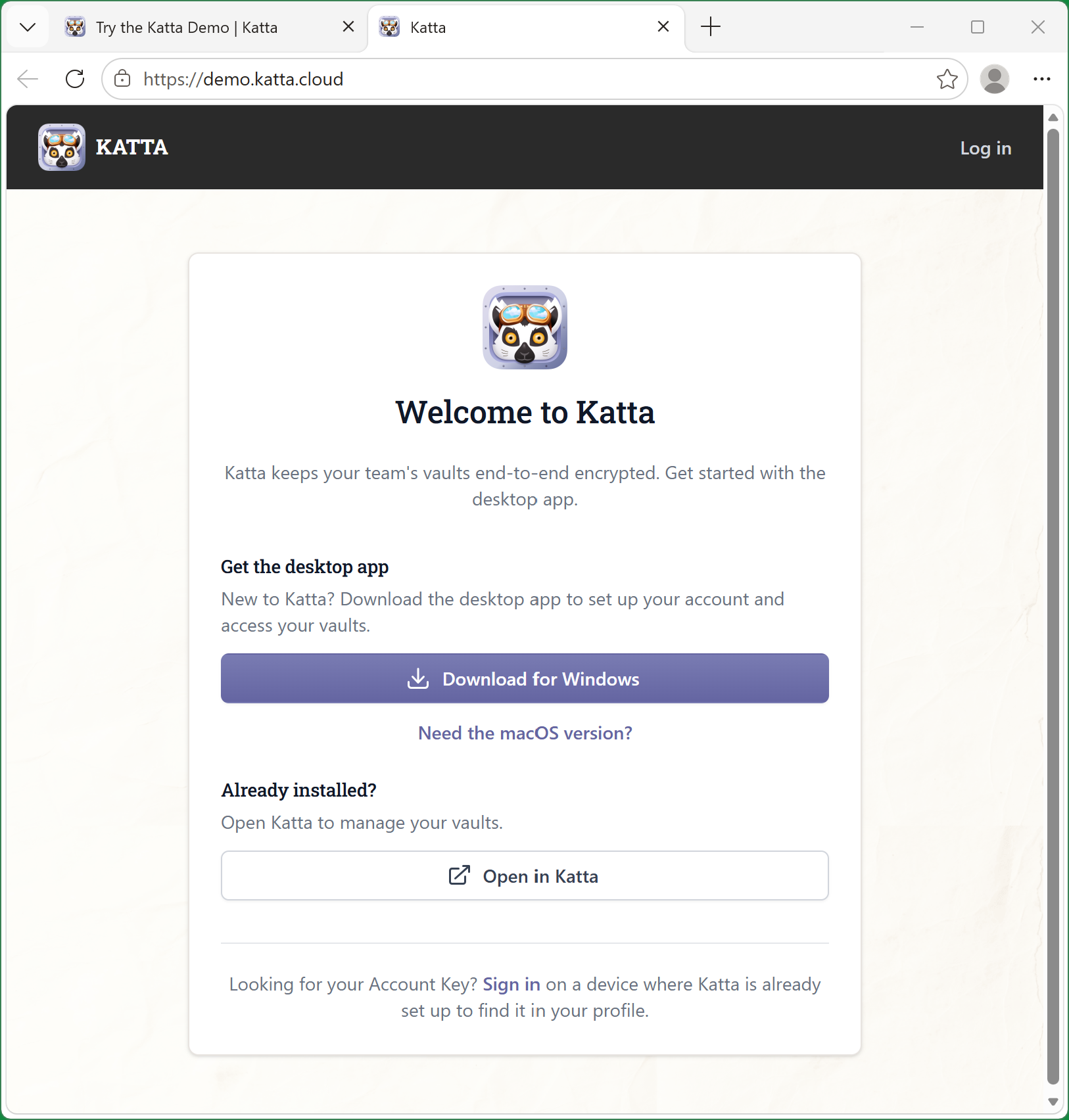
Download Katta Desktop from the Katta Web application of your Katta Server and install it:
- macOS
- Windows
Open the .zip or .dmg and drag Katta.app into your Applications folder.
Open the .msix package and follow the wizard.
To access with Katta Desktop over plain HTTP (no HTTPS/TLS required) in a development or test environment, install the Katta Server (HTTP) connection profile from Preferences → Profiles.
Authenticate with Katta Server
Choose Open in Katta from the Katta Web application of your Katta Server, or open the connection prompt manually with Open Connection… from the Katta Desktop menu and enter the server hostname.
- macOS
- Windows
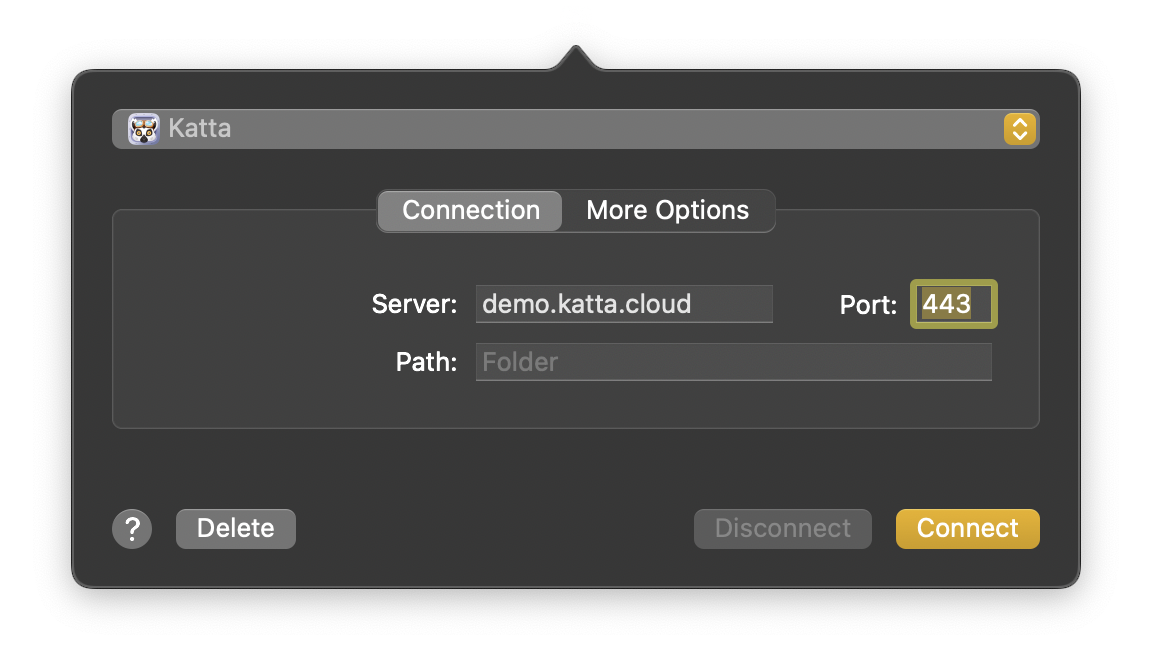
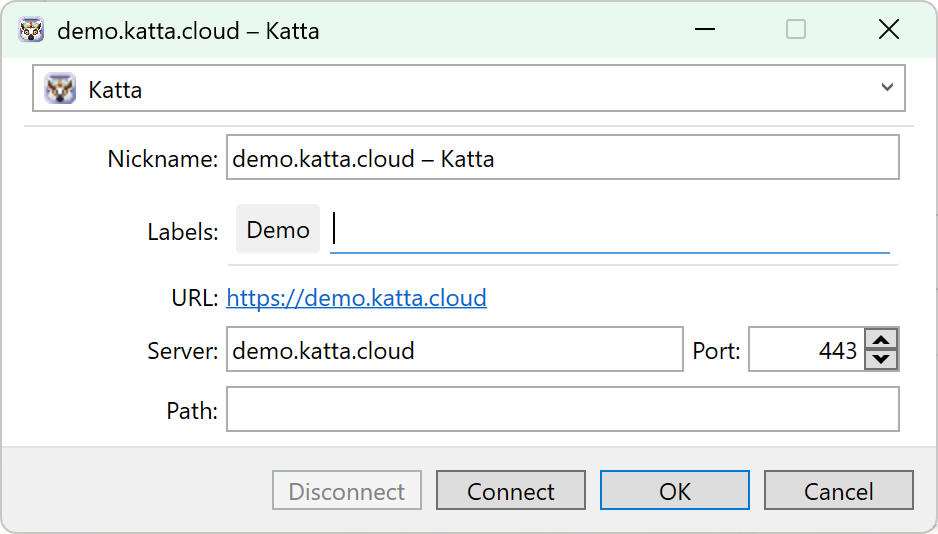
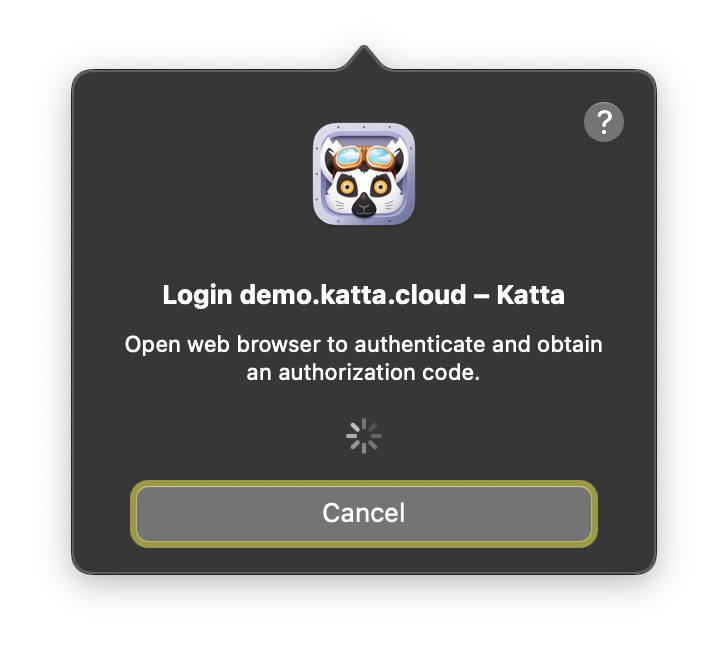
Katta Desktop opens your web browser to obtain an authorization code and shows the prompt below until you finish signing in (select Cancel to abort).
- macOS
- Windows
Windows screenshot pending.
Your browser opens the Katta Web sign-in page. Enter your username (or email) and password and select Sign In. If your organization connects an external identity provider (OpenID Connect, SAML, or LDAP), authenticate there instead.
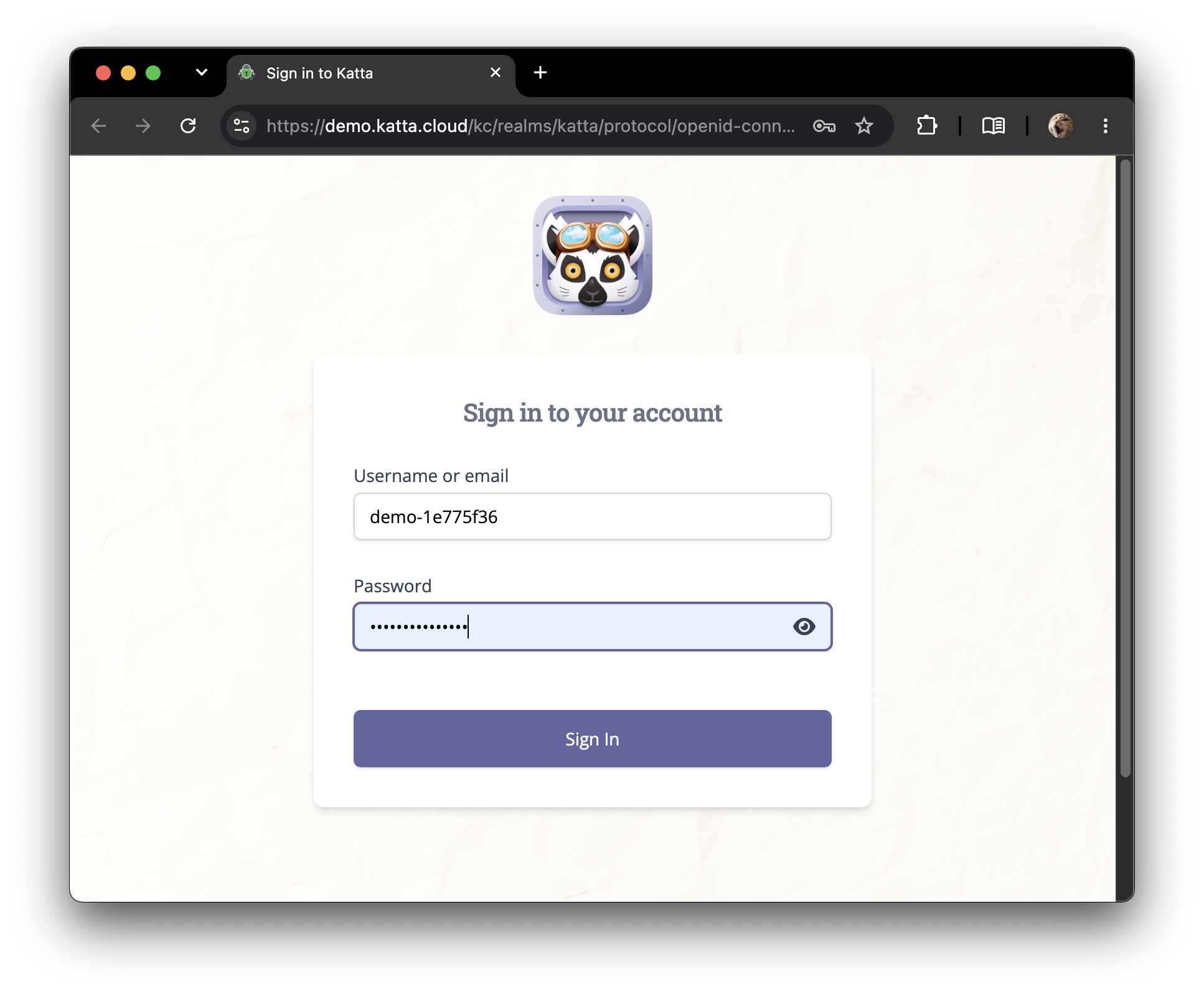
After a successful sign-in the browser passes the authorization code back to Katta Desktop; you can then close the browser tab.
Create your Account Key
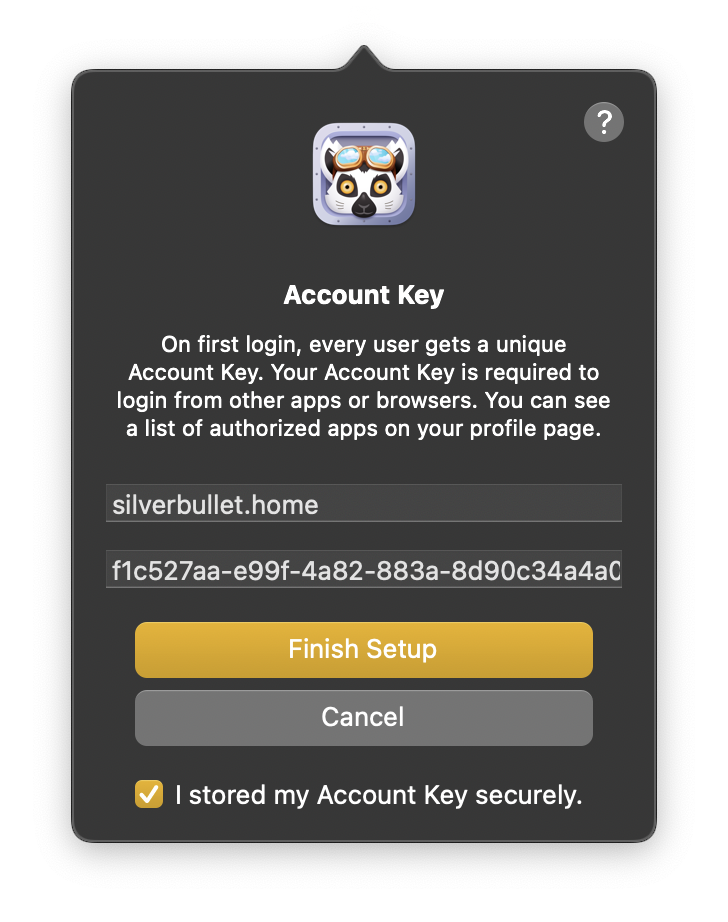
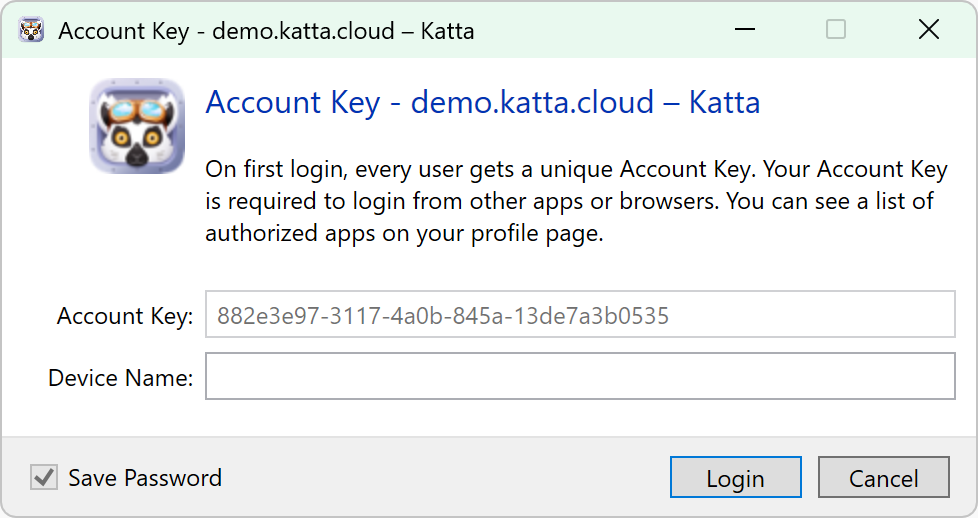
The first time you authenticate on a device, Katta Desktop creates your Account Key — a high-entropy secret that protects your personal key pair. It is never sent to Katta Server and allows you to retrieve your personal key pair in other apps and browsers on any device. Refer to User Keys for more information.
Copy the generated Account Key to a safe place, for example a password manager. Then confirm the dialog:
- macOS
- Windows
Tick I stored my Account Key securely, then select Finish Setup.
Enter a device name. Keep Save Password ticked, then select Login.
Set Up a New Device
If you already created your Account Key on another app or browser (for example when signing in to Katta Web), enter it here to unlock your key pair on this device.
- macOS
- Windows
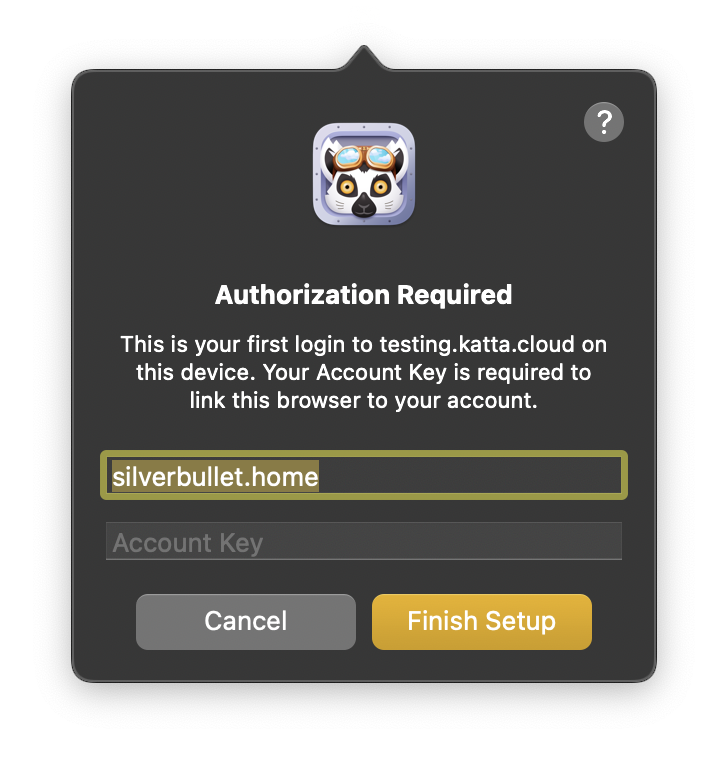
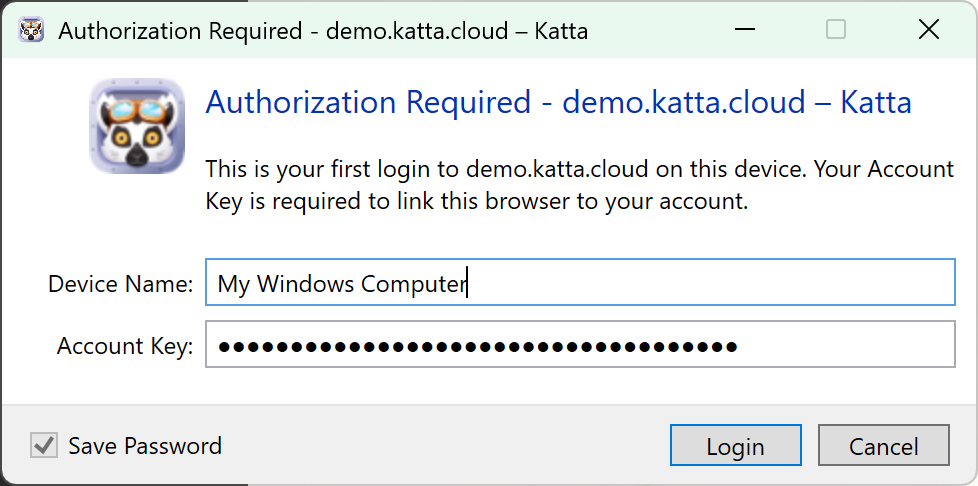
You can review the apps and devices authorized with your Account Key on your profile page in Katta Web. See User Keys for what happens behind the scenes.
Create a New Vault
Creating a new vault in Katta Web is also supported with limitations.
Once authenticated, Katta Server is mounted as a location (for example Katta – demo.katta.cloud).
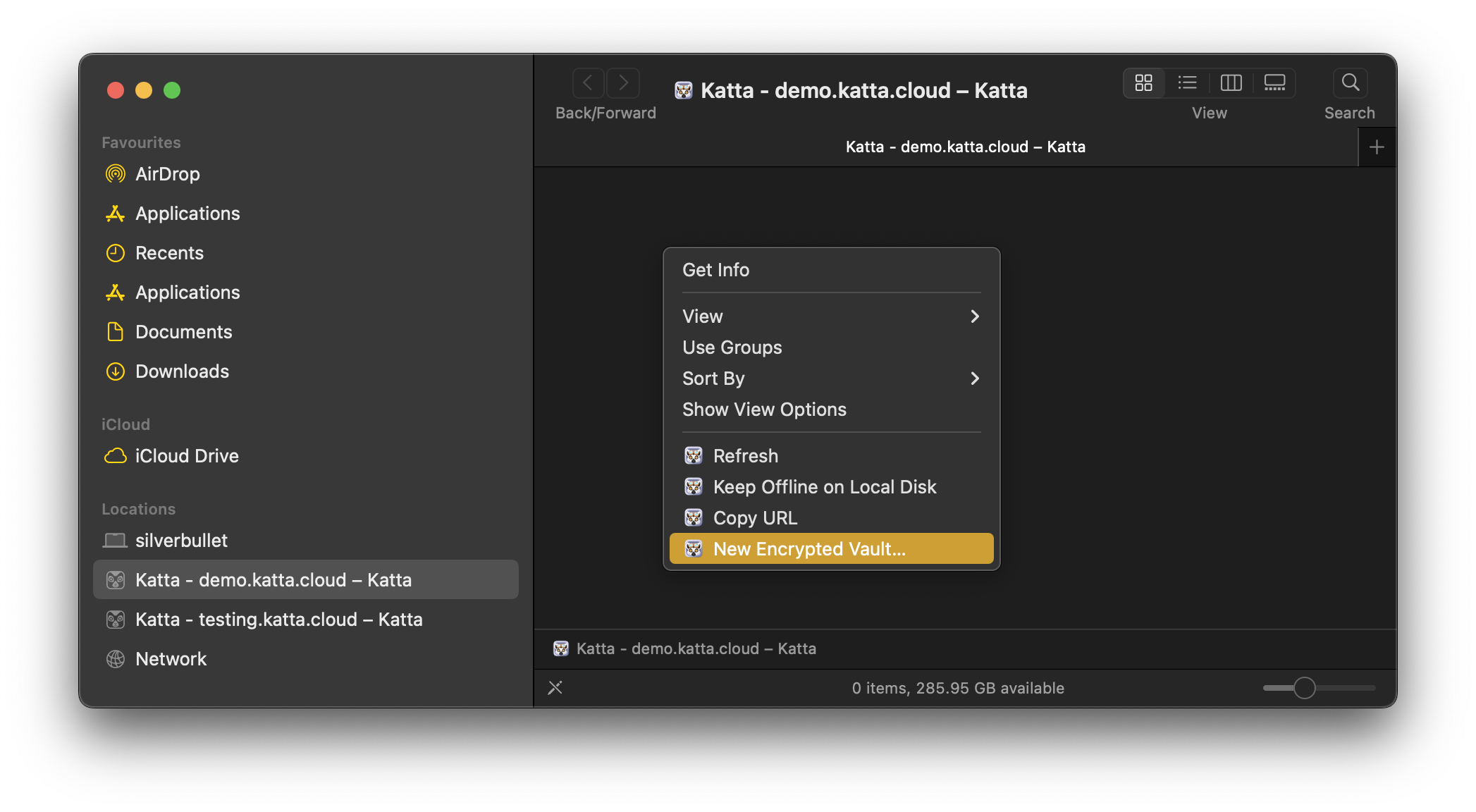
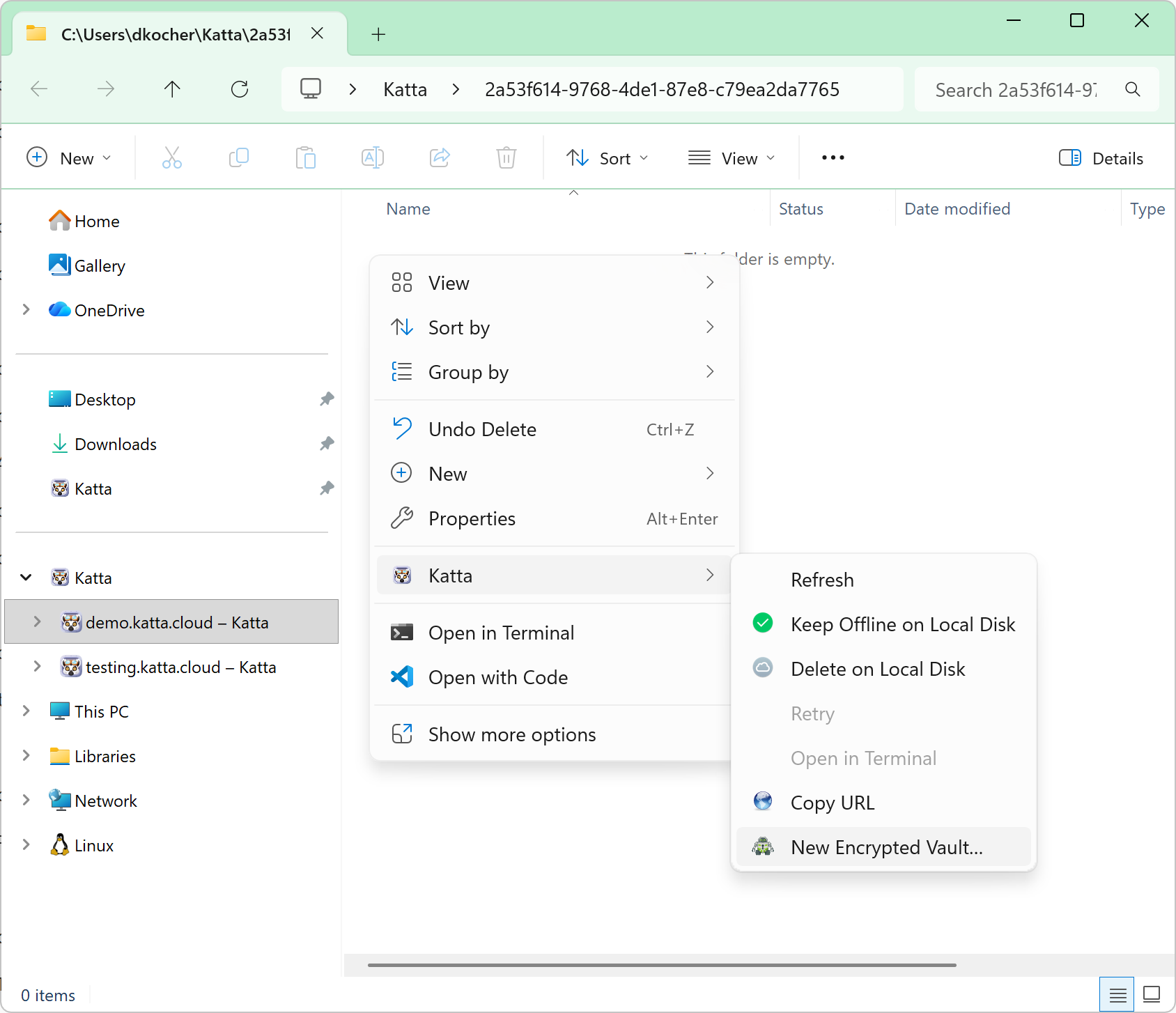
1. Add a new vault. Open the Katta location and secondary-click (right-click) an empty area. On macOS, choose New Encrypted Vault…. On Windows, choose Katta and then New Encrypted Vault….
- macOS
- Windows
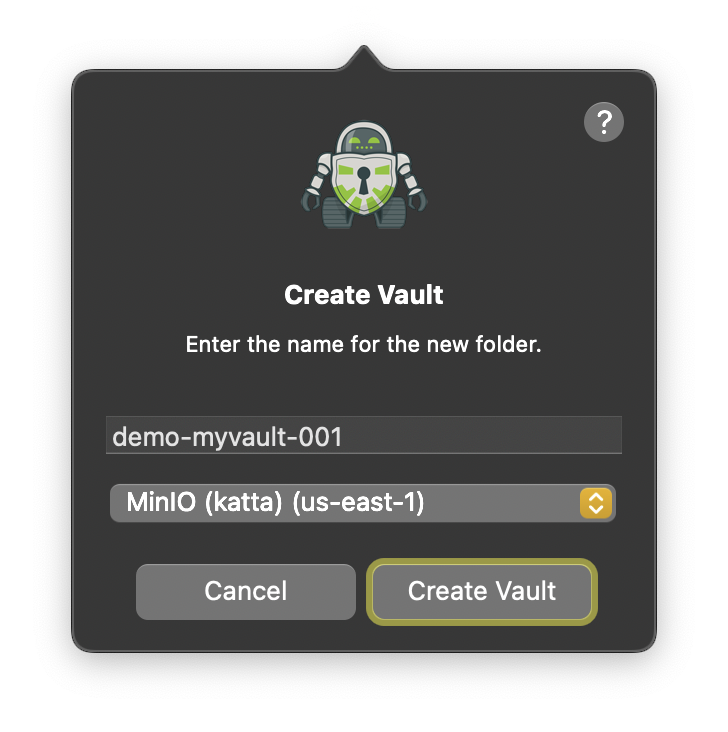
2. Name it and choose a storage profile. Enter a name for the vault and pick a storage profile from the dropdown. The list contains the storage locations your administrator configured (see Storage Profiles); the value in parentheses is the region the bucket is created in. Select Create Vault.
- macOS
- Windows
Windows screenshot pending.
3. Enter the access keys. If the storage profile uses Static Credentials, Katta Desktop asks for two pairs of Access Key ID and Secret Access Key.
- Bucket access pair, asked for first, is stored in the encrypted vault metadata and handed to every member of the vault.
- Bucket creation pair, asked for second, is used once to create the bucket and upload the vault template.
Katta Desktop creates the storage bucket, uploads the encrypted vault template, and registers the vault keys with Katta Server (encrypted on your device).
You become the vault owner and can share the vault with other Katta users from Katta Web.
Add Files to a Vault
The vault appears as a folder inside the Katta location. Work with it like any other folder: drag files and folders into it in Finder on macOS or File Explorer on Windows, or save into it from an application. Katta Desktop syncs the contents to the vault's S3 bucket in the background; opening a file downloads and decrypts it on demand.
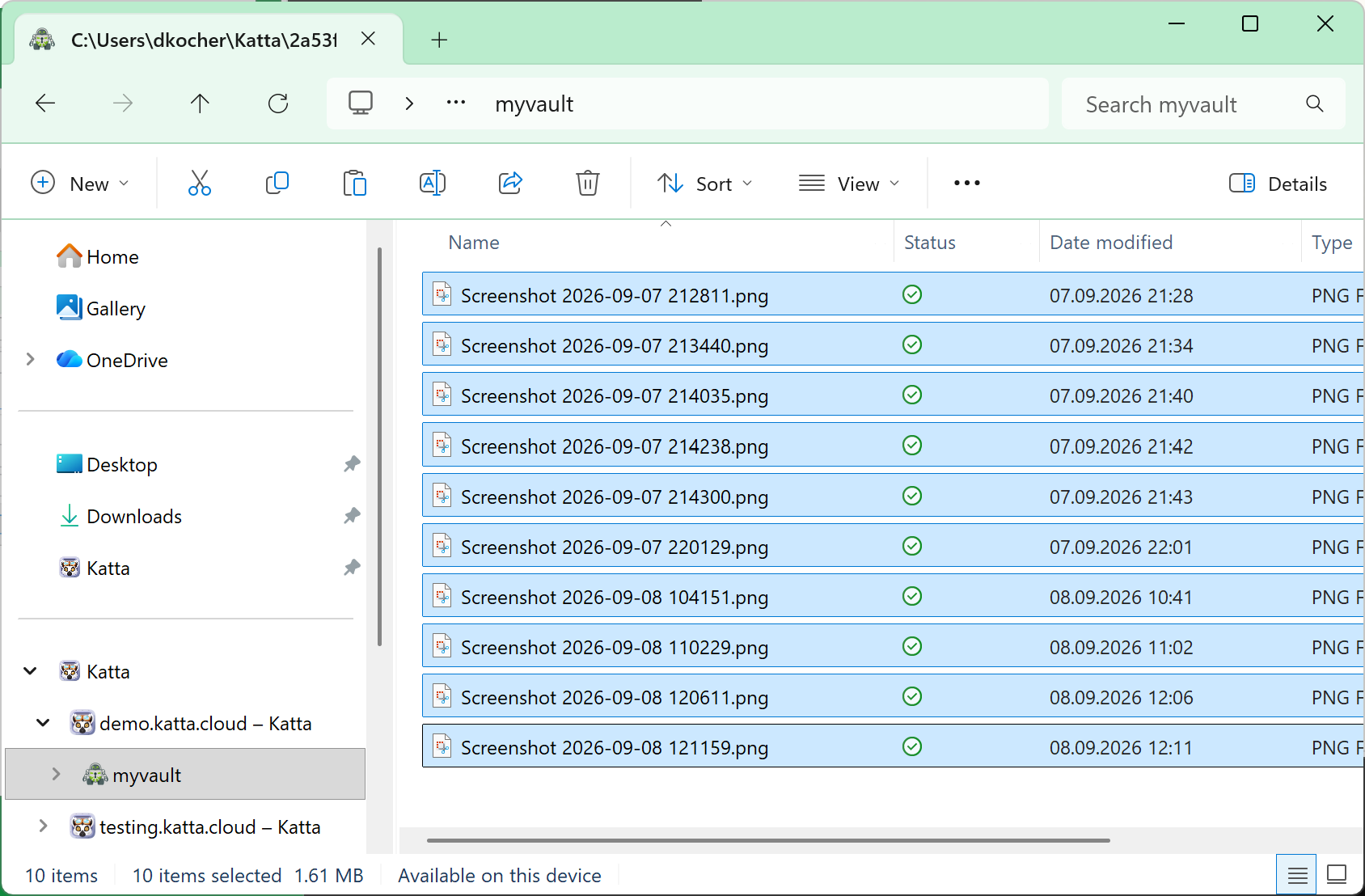
Everything you put in a vault is encrypted on your device before upload and decrypted only on the device of a vault member. File contents and file and folder names are encrypted; the S3 bucket holds only ciphertext. See Security and E2E-Encrypted Data Sync for details.